Why AI Has Completely Changed the Icon Design Game
Designers used to spend hours in Illustrator nudging anchor points to get a single icon right. Now you can generate a full set of cohesive custom graphics in the time it takes to drink a cup of coffee, and the quality is genuinely competitive with professional work.
AI custom icons aren’t just a shortcut for beginners. Seasoned designers are integrating these tools into their workflows to speed up ideation, prototype faster, and explore visual directions they’d never have time to sketch manually. Whether you’re building a mobile app, designing a dashboard UI, or creating a brand identity, AI graphic design tools have made the barrier to high-quality icon creation dramatically lower.
But there’s a real skill gap between people who get mediocre results from these tools and people who get polished, production-ready assets. That gap almost always comes down to how well you understand prompting, post-processing, and tool selection. This guide covers all three.
Choosing the Right Tool for Icon and Graphics Work
Not every AI image generator is built equally when it comes to icon design. Some tools excel at photorealistic imagery but struggle with clean, flat vector-style graphics. Others are purpose-built for the kind of precise, stylistically consistent output that icons require.
Midjourney
Midjourney is arguably the most popular AI image tool right now, and it’s genuinely excellent for icon design ai workflows when you use the right parameters. Its strength lies in producing visually cohesive sets with consistent lighting, color palettes, and line weights. Use the --no background parameter and style prompts like “flat design”, “isometric”, or “line icon” to steer it toward usable graphic output. Version 6 and beyond have significantly improved its handling of small-scale details, which matters enormously for icons that need to stay readable at 32×32 pixels.
Adobe Firefly
If you’re already in the Adobe ecosystem, Firefly is a natural fit. It’s designed with commercial licensing in mind, which removes the ambiguity around using AI-generated assets in client work. Firefly integrates directly with Illustrator and Photoshop, letting you generate custom graphics ai assets and immediately refine them with familiar tools. For anyone who needs vector output or needs to tweak paths, this integration saves considerable time.
DALL-E 3 via ChatGPT
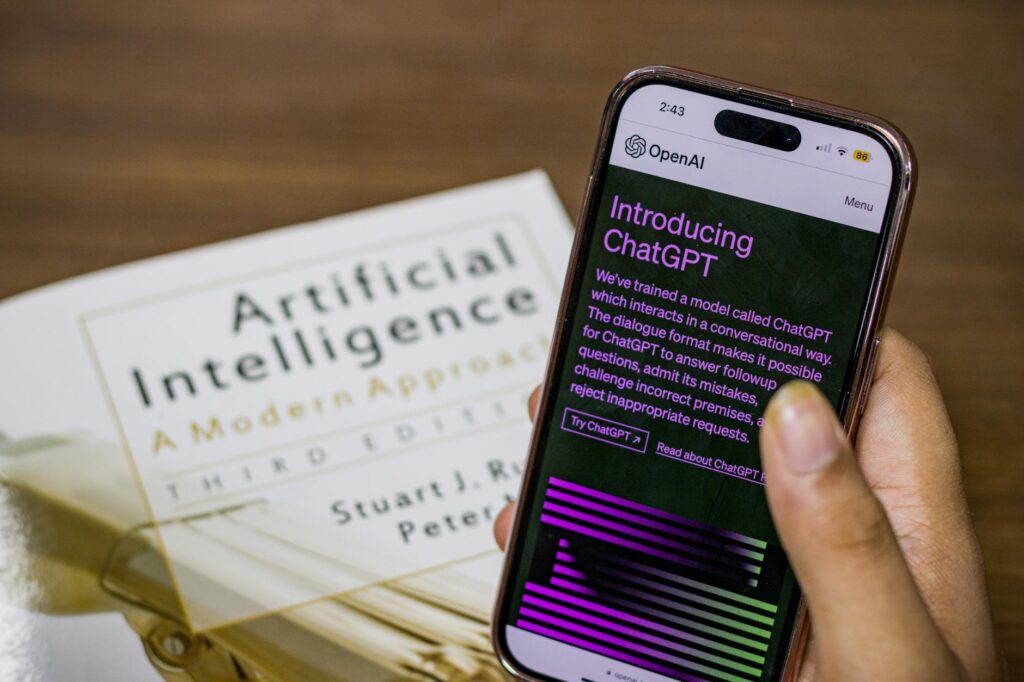
OpenAI’s DALL-E 3 handles natural language prompts extremely well, making it accessible for non-designers who can describe what they want conversationally. It’s particularly useful for generating icon concepts quickly during early-stage product design. The tradeoff is that it doesn’t match Midjourney’s aesthetic polish out of the box, and you’ll often need more post-processing for professional results.
Recraft and Canva AI
Recraft is worth calling out specifically because it was built with icon and illustration creation as a primary use case. It supports true vector SVG export, which almost no other AI image tool offers natively. For ai icon creation at a professional level, that SVG output is a significant advantage. Canva’s AI tools, meanwhile, are ideal for teams that need quick turnaround on custom graphics without deep design expertise on staff.
The Art of Prompting for Consistent, Usable Icons
This is where most people go wrong. They type something like “shopping cart icon” and expect a production-ready result. What they get is usually an icon that’s slightly off-style, inconsistently rendered, or impossible to separate cleanly from its background. Effective AI icon creation depends on precise, structured prompting.
Define the Style First, Always
Before you describe the subject of your icon, define its visual style. Is it flat design? Line art? Filled glyph? Isometric 3D? Skeuomorphic? Every one of these styles has a completely different visual vocabulary, and AI tools need that anchor before anything else. A prompt like “flat design shopping cart icon, solid color, minimal detail, white background” will produce dramatically more usable output than a bare subject description.
Specify Visual Constraints
Icons live inside tight constraints that most general-purpose AI prompts ignore. Include the following in your prompts:
- Background: “transparent background” or “white background” (depending on the tool and your export intent)
- Color palette: “using only blue and white”, “monochrome”, or specific hex references where the tool supports it
- Line weight: “thick strokes”, “2px outline”, “bold lines”
- Size implication: “simple enough to read at small scale”, “minimal details”
- Style references: “in the style of Material Design icons” or “similar to iOS system icons”
Batch Prompting for Icon Sets
Consistency across an icon set is the hardest thing to achieve with AI tools. If you generate 20 icons with 20 separate prompts, you’ll get 20 slightly different visual languages. The fix is to lock in a “style seed” prompt and append only the subject variation. In Midjourney, you can use the --seed parameter to maintain consistency. In other tools, copy your base style prompt exactly and change only the subject noun. Something like: “flat design [SUBJECT] icon, blue fill, rounded corners, white background, minimal detail, consistent with a modern SaaS app UI.”
Running this prompt with different subjects (calendar, settings gear, user profile, search magnifier) will give you a set that actually coheres visually, which is the whole ballgame in icon design ai work.
Post-Processing: Turning AI Output into Production-Ready Assets
Raw AI output almost never goes straight to production. Even excellent generations need cleanup, format conversion, and optimization. Here’s how to handle that efficiently.
Background Removal
Unless you’re using a tool that natively supports transparent backgrounds (and even then, verify the output), you’ll need to remove backgrounds. Remove.bg handles this in seconds for raster images. If you’re working in Photoshop, the AI-powered “Remove Background” button in the Properties panel does a solid job for clean icon shapes. For more complex edges, Photoshop’s Select and Mask workspace gives you finer control.
Vectorization
Most AI image tools output raster files (PNG or JPG). Icons almost always need to be scalable vectors for production use, especially in app development or brand contexts. Adobe Illustrator’s Image Trace feature converts raster icons to vector paths, though it works best on simple, high-contrast images. Vectorizer.ai is a dedicated online tool that handles this conversion with impressive fidelity. If you’re working in Figma, you can import your rasterized AI graphic and trace it manually, or use a plugin like “Vectorize!” to automate the process.
Color Corrections and Refinements
AI-generated icons frequently have subtle inconsistencies in color. Two icons from the same session might render “blue” as slightly different hex values. Run your set through a tool like Figma or Illustrator and standardize colors to your exact brand palette. This takes about five minutes per icon set and makes an enormous difference in how professional the final output looks.
Optimizing for Export
SVG is the preferred format for most icon use cases. It’s resolution-independent, compresses well, and can be styled with CSS in web applications. When exporting SVGs, run them through SVGO (available as a web tool at jakearchibald.github.io/svgomg) to strip unnecessary metadata and reduce file size. For app icons that require PNG, export at 2x and 3x resolutions to cover standard and high-density displays.
Practical Workflows for Specific Use Cases
Knowing the tools and techniques is one thing. Knowing how to chain them into an efficient workflow for specific projects is another.
App UI Icon Sets
Start by defining your app’s visual language (line weight, corner radius, color count) before you generate anything. Use Midjourney or Recraft to generate your base set using a locked style prompt. Export, vectorize in Illustrator, clean up paths, then standardize in Figma. Build a Figma component library with your icons so the team can use them as properly sized, color-swappable components. This entire process, which would have taken a designer several days working from scratch, now realistically takes a few hours with AI graphic design tools in the loop.
Brand Identity Graphics
Custom graphics ai tools shine in early brand concepting. Generate 20 logo mark variations in Midjourney in an afternoon, present the strongest three to the client for direction, then refine the chosen concept manually in Illustrator. This isn’t replacing the designer’s judgment; it’s accelerating the ideation phase where time and budget constraints used to squeeze creativity. Clients often make faster decisions when they can see multiple visual directions simultaneously rather than waiting weeks for hand-drawn concepts.
Content and Marketing Graphics
For social media graphics, blog post illustrations, and marketing materials, DALL-E 3 or Firefly work well for generating custom scene illustrations and decorative graphic elements. Pair these with Canva for layout if your team doesn’t have a dedicated designer. The key is developing a consistent “graphic language” document that specifies the prompt style terms you’ll use consistently, so your AI-generated content doesn’t look like it came from five different sources.
Navigating Licensing and Commercial Use
This is a question that trips up a lot of people diving into AI custom icons for the first time. Licensing varies significantly across platforms. Midjourney’s commercial use terms depend on your subscription tier, with Pro and higher plans offering broader commercial rights. Adobe Firefly is explicitly trained on licensed content and Adobe Stock imagery, making it the safest choice for commercial client work. DALL-E 3 through ChatGPT Plus grants users commercial rights to their outputs under OpenAI’s current terms.
Always check the current terms of service for any tool you’re using in paid client work. Policies in this space are evolving quickly, and what was true six months ago may not be accurate today.
The practical upside is that roughly 80% of commercial design work can now be handled with tools that have clear commercial licensing, and that number is only growing as platforms mature and clarify their terms.
Start Small, Build a Repeatable System
If you’re new to ai icon creation, don’t try to build a 50-icon set on your first attempt. Start with five to eight icons for a single use case, nail your style prompt, establish your post-processing workflow, and document every decision. That documented system is your real asset. Once it exists, you can scale it to any project, hand it to a team member, and get consistent results without starting from scratch every time. The designers and teams pulling the most value out of AI graphic design right now aren’t the ones generating the flashiest single images. They’re the ones who’ve built repeatable systems around these tools and are shipping better work, faster, than they ever could before.