Your Virtual Background Just Got a Whole Lot More Interesting
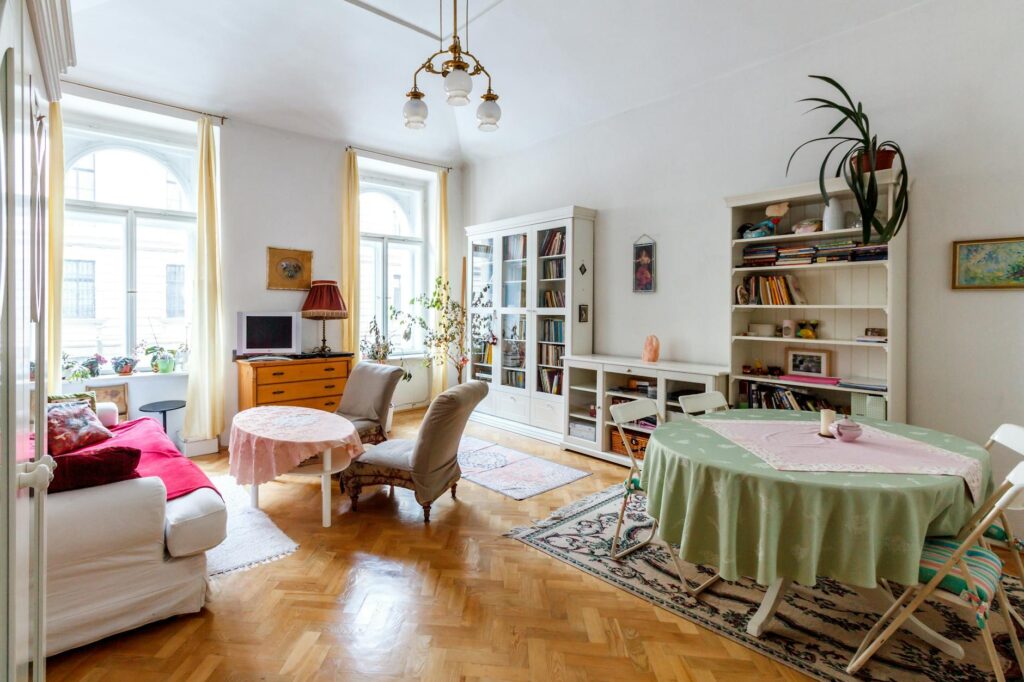
The blurred background and the fake bookshelf wallpaper are dead. AI image generation has completely changed what’s possible for your video calls, and if you’re still cycling through the same stock office photos Zoom shipped in 2020, you’re leaving a genuinely powerful tool on the table.
Using AI to create custom backgrounds for Zoom isn’t just a novelty. It’s a practical way to control how you present yourself professionally, reinforce your brand during client calls, set a creative tone for team meetings, or simply stop broadcasting your messy living room to the world. The tools available right now are fast, free or cheap, and require zero design experience. Here’s exactly how to use them.
What Makes a Good AI Zoom Background
Before you open any AI image generator, it helps to understand what actually works as a virtual background. Zoom’s background replacement algorithm performs best with images that have clear depth, a defined background plane, and relatively consistent lighting. Images that are too busy, too dark, or full of fine details at the edges tend to cause the ghosting and edge-bleed that makes virtual backgrounds look cheap.
The ideal ai zoom background has a few specific characteristics:
- Resolution of at least 1920×1080 pixels (1080p) to avoid blurriness on HD calls
- A natural sense of depth, with a clear foreground-to-background visual hierarchy
- Lighting that roughly matches a standard indoor setup, typically soft and frontal
- A color palette that doesn’t clash with your skin tone or typical clothing
- Minimal fine, repeating textures near the edges of the frame
The good news is that most modern AI image generators produce output that meets these requirements by default, especially when you use the right prompts. The challenge isn’t generating a beautiful image. It’s generating a beautiful image that works as a functional background on a video call.
The Best AI Tools for Generating Meeting Backgrounds
Several tools compete in this space, and each has different strengths depending on your workflow and budget.
Midjourney
Midjourney is still the gold standard for photorealistic and stylized scene generation. For creating a professional meeting background ai image, it’s hard to beat. The platform runs through Discord, which feels clunky if you’ve never used it, but the output quality is exceptional. Use the --ar 16:9 parameter to ensure your output matches widescreen aspect ratio. Prompts like “modern home office, natural light from left window, bookshelf with plants, soft depth of field, photorealistic” consistently produce usable backgrounds on the first or second attempt.
DALL-E 3 via ChatGPT
If you already pay for ChatGPT Plus, DALL-E 3 is built in and surprisingly capable for this use case. It’s more literal in how it interprets prompts than Midjourney, which can actually be an advantage when you need something specific. Ask for “a wide 16:9 image of a bright Scandinavian-style office with white walls, wooden desk, and soft morning light” and it’ll give you something close to exactly that. The iteration speed is fast, and you can refine results conversationally in the same chat window.
Adobe Firefly
Adobe Firefly is worth knowing about if you need commercial-safe content. Every image it generates is trained on licensed material, so there’s no legal gray area about using the output in professional or branded contexts. The quality is strong, the interface is clean and browser-based, and the aspect ratio controls make it easy to generate 16:9 images directly. It’s also deeply integrated with Photoshop, which matters if you want to composite elements or adjust your background after generation.
Stable Diffusion (Local or via API)
For anyone comfortable with a bit of technical setup, running Stable Diffusion locally through a tool like ComfyUI or AUTOMATIC1111 gives you unlimited generation at no per-image cost. The zoom background creator ai workflow here is more involved, but the control is unmatched. You can fine-tune models specifically on architectural interiors or specific aesthetic styles, use ControlNet to influence composition precisely, and batch-generate dozens of variations quickly. If you’re creating backgrounds at scale, for a team or for clients, this is the route.
Crafting Prompts That Produce Usable Backgrounds
Prompt engineering for virtual backgrounds follows slightly different logic than prompting for general art. You’re optimizing for functional output, not just visual appeal. A few principles make a significant difference.
Start with the setting, then describe the lighting, then specify the mood or style. “Modern minimalist home library, floor-to-ceiling bookshelves, warm ambient light, late afternoon sun, shallow depth of field, clean and professional” gives an AI generator enough to work with across all three axes: space, light, and tone.
Always specify the aspect ratio and resolution intent explicitly when the tool allows it. For Midjourney, append --ar 16:9. In ChatGPT, phrase your request as “a wide landscape-format image designed to be used as a video call background.” These small additions shift the composition significantly.
Avoid prompts that generate text, faces, or busy foreground elements. Text renders poorly at video call resolution and can distract viewers. Faces in the background create an uncanny effect that pulls attention away from you. Instead, lean toward architectural elements, natural scenes, abstract but calm environments, or branded design elements if you’re going for a corporate look.
Negative prompts matter too, especially in Stable Diffusion. Use terms like “no text, no people, no clutter, no distortion” to steer generation away from common failure modes. In tools that don’t support negative prompts directly, add phrases like “clean, minimal, uncluttered” to the positive prompt.
Adjusting and Optimizing Your Generated Background
Raw AI output rarely needs much work for a Zoom background, but a few quick adjustments can make the difference between good and great.
Upscaling for Sharpness
Many AI generators produce images at 1024×1024 or similar square outputs by default. Before using anything as a virtual background ai asset, run it through an upscaler. Topaz Gigapixel AI, the free Upscayl app, or even the upscaling built into Midjourney and Stable Diffusion can bring a 1024px image up to 1920×1080 or higher without visible quality loss. The difference on a 4K monitor is noticeable.
Adjusting Brightness and Contrast
If your generated background is significantly brighter or darker than your typical video setup, it’ll visually separate you from the scene. A quick levels adjustment in Lightroom, Photoshop, or even the free Photopea browser app can bring the ambient light of the background closer to your actual lighting conditions. This small step dramatically improves how believable the composite looks to your call participants.
Cropping and Framing
Consider where you’ll typically sit in the frame when choosing how to crop your background. If you sit centered with your head in the upper third, the visual “weight” of the background should be distributed accordingly. A beautiful window shouldn’t be cropped so that it appears directly behind your head, creating a halo effect that Zoom’s algorithm will struggle with. Offset key visual elements slightly to one side for a more natural composition.
Using Dedicated AI Call Background Platforms
Beyond general-purpose image generators, a category of tools has emerged that’s specifically designed for the ai call background use case. These platforms streamline the generation and upload process for non-technical users.
Designs.ai, Canva’s AI background features, and several standalone apps in the Zoom App Marketplace all offer prompt-based or style-based background generation with direct export to Zoom-compatible formats. The output quality from these specialized tools typically doesn’t match Midjourney or Stable Diffusion, but the workflow friction is much lower. If you need five backgrounds in ten minutes for a team event, a dedicated tool like this is the pragmatic choice.
Some platforms also offer branded background creation, where you provide your company logo, primary colors, and a style preference, and the system generates a set of cohesive branded backgrounds for your entire team. This is particularly useful for sales teams, customer success managers, or anyone who regularly presents on video and wants consistent visual branding without a graphic design budget.
Setting Up Your AI-Generated Background in Zoom
The upload process is straightforward. Open Zoom, go to Settings, select Background and Effects, and click the plus (+) icon to add an image. Zoom accepts JPEG, PNG, and GIF formats, with a file size limit of 5MB for images and 50MB for GIFs. If your generated image is larger, compress it with Squoosh or TinyPNG without meaningful quality loss.
Zoom works best with a green screen for virtual backgrounds, but it doesn’t require one. If you’re using a generated background and noticing heavy edge artifacts around your hair or shoulders, try enabling the “I have a green screen” option even without one. Counterintuitively, on some webcams and lighting setups, this mode produces cleaner edges against certain background colors. Experiment with a few background colors and lighting setups to find the combination that eliminates the most ghosting.
For Google Meet users, the process is nearly identical: click the three dots for “More options” before or during a call, select “Apply visual effects,” and upload your image. Microsoft Teams follows the same general pattern through the background settings panel.
Make Your Background Work For You, Not Just Behind You
The smartest use of AI-generated backgrounds isn’t just aesthetic. It’s strategic. Your background communicates context before you say a word. A well-crafted virtual background built with an AI zoom background tool can signal expertise, creativity, or professionalism instantly. It can reinforce your personal brand on every call without a dedicated studio or ring light setup worth thousands of dollars.
Start with one tool, generate five variations of a scene that fits how you want to be perceived, run them through a quick upscale pass, and test them on your next call. You’ll know within two minutes which one works. From there, building a small library of situational backgrounds, one for client pitches, one for internal meetings, one for webinars, takes less than an hour and pays dividends every single time you open Zoom.