Your Photos Are Better Reference Material Than You Think
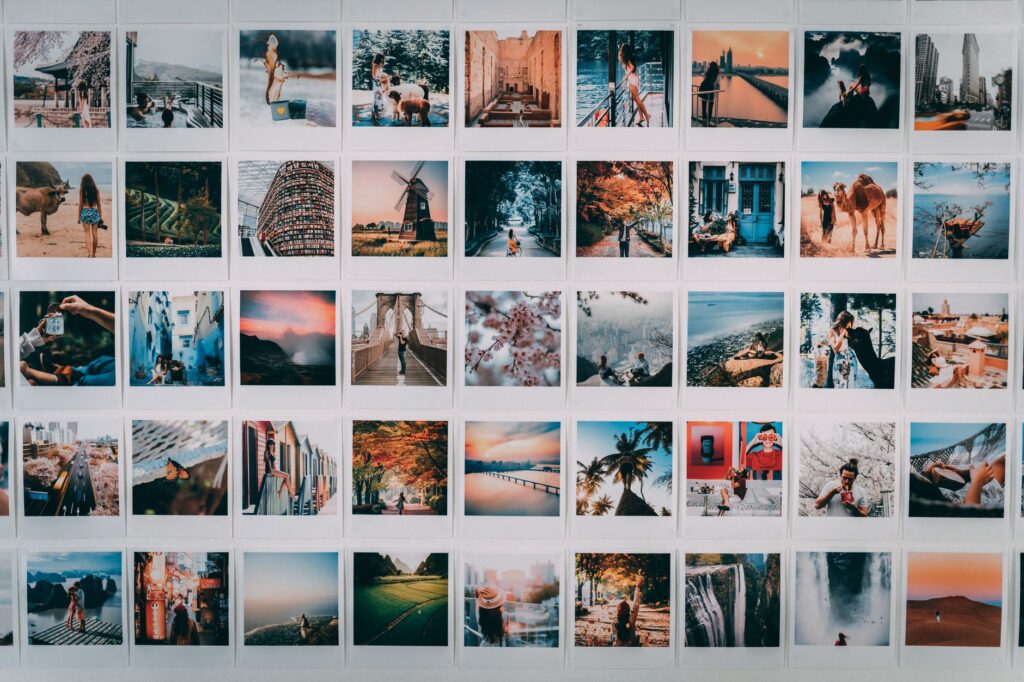
That photo sitting in your camera roll right now could become a stunning piece of AI artwork in about ten minutes. Most people have no idea how much creative potential they’re walking past every single day.
Using real-world photos as the foundation for AI-generated art is one of the most underrated workflows in the entire AI image generation space. It gives you control, specificity, and a personal touch that pure text prompting just can’t match. When you feed an AI a photo reference, you’re not just describing a scene, you’re anchoring the output to something concrete. The results tend to be sharper, more cohesive, and honestly a lot more interesting than what you’d get from a vague text prompt alone.
This guide walks you through the whole process, from choosing the right photos to picking tools, crafting prompts, and refining your results. Whether you’re a hobbyist, a photographer, or someone who just wants to experiment, this is genuinely worth your time.
What “Photo to AI Art” Actually Means (And Why It Matters)
There’s some confusion about what photo to AI art workflows actually involve. It’s not just slapping a filter on an image. It’s using a photo as a structural or stylistic anchor while an AI model reimagines it according to a style, mood, or aesthetic you define.
Some tools use the photo to extract composition and lighting data. Others analyze color palettes or dominant shapes. A few do all of the above. The photo becomes a kind of skeleton, and the AI builds the artistic flesh around it.
This matters because it fundamentally changes what AI art can do. Without photo reference, AI art depends entirely on how well you can describe your vision in words. With it, you can bypass a huge chunk of that guesswork. Got a photo of an old stone building you took in Portugal? You can turn that into a moody oil painting, a cyberpunk cityscape, or a whimsical watercolor, without needing to describe every architectural detail from scratch.
Creating ai photo inspired art this way also means your outputs have a uniqueness that’s hard to replicate. Nobody else has your exact photo, your exact lighting, your exact angle. That distinctiveness carries through into the final artwork.
Choosing the Right Photo for Best Results
Not every photo works equally well as a reference. Some shots are going to give you dramatically better outputs than others, and understanding why helps you make smarter choices.
Lighting and Contrast Make a Big Difference
High-contrast photos with clear light sources tend to generate more dynamic AI artwork. Flat, overcast lighting can produce muddy, low-energy results. If you have a shot with a strong directional light, golden hour glow, or interesting shadow play, that’s a great candidate. The AI uses those tonal relationships to structure the image, so giving it something dramatic to work with pays off.
Composition Should Be Clear and Intentional
Cluttered, chaotic photos often produce cluttered, chaotic AI art. A well-composed shot with a clear subject, some breathing room, and a readable background is going to translate much better. Think about the rule of thirds, leading lines, and negative space. These aren’t just photography principles, they directly influence how clean and compelling your final artwork looks.
Resolution Matters More Than You’d Expect
Low-resolution or heavily compressed photos introduce artifacts that AI models can struggle with. You don’t need a professional DSLR shot, but a clean smartphone photo at full resolution is much better than a cropped, exported-from-a-story 640px thumbnail. Aim for at least 1024 pixels on the short edge when possible.
The Best Tools for Turning Photo References Into AI Artwork
There are several solid tools for image to ai artwork workflows, and they each have their strengths. Here’s a practical breakdown.
Midjourney (With Image Prompting)
Midjourney lets you upload an image and use it as a prompt reference with the –iw (image weight) parameter. You can blend a photo with a text prompt, controlling how strongly the image influences the final output. A setting of –iw 0.5 gives the text more control; –iw 2 makes the image the dominant driver. It’s powerful, but you need a subscription and you’ll do your work through Discord or their web app.
Stable Diffusion (img2img)
This is the most flexible option for serious users. Stable Diffusion’s img2img pipeline takes your photo and transforms it according to your text prompt, with a “denoising strength” slider that controls how much the AI departs from the original. A low denoising strength (around 0.3 to 0.4) keeps things close to the source photo. Push it toward 0.8 or 0.9 and the AI gets a lot more creative freedom. You can run this locally with tools like Automatic1111 or ComfyUI, or use it through platforms like NightCafe or Dezgo.
Adobe Firefly
Firefly’s “Generative Fill” and style reference features are excellent for non-technical users. It integrates directly into Photoshop, so you can use a photo as your base layer and use AI to extend, restyle, or transform specific sections. It’s a great entry point for photographers who are already in the Adobe ecosystem and want to experiment without a steep learning curve.
Leonardo AI
Leonardo has become a solid contender for photo reference ai art workflows. Its “Image Guidance” feature lets you upload a reference photo and control how much weight it has over the final composition and style. It’s got a free tier, a reasonably intuitive interface, and some genuinely impressive style presets. For beginners, this is probably the most approachable option with serious output quality.
How to Write Prompts That Work With Photo References
Using a photo reference doesn’t mean your prompts matter less. It means you can write more targeted, focused prompts because the AI already has the structural information. You’re guiding the style and mood rather than describing the scene from scratch.
Think of your prompt as the creative direction and your photo as the casting call. You’re telling the AI what kind of movie this is, and the photo is showing it who the actor is.
Lead With the Artistic Style
When you’re creating an ai artistic style photo transformation, put the style information at the front of your prompt. “Oil painting in the style of Rembrandt, dramatic chiaroscuro lighting” is going to land differently than burying that at the end after three sentences about what’s in the image. Most models weight the beginning of the prompt more heavily, so front-load the important stuff.
Be Specific About Medium and Texture
Vague style prompts give vague results. Instead of just saying “painted style”, try “impasto oil painting with thick visible brushstrokes, warm palette dominated by ochres and sienas.” Instead of “sketch”, try “charcoal sketch on rough textured paper, loose gestural lines, smudged shadows.” Specificity is what separates generic outputs from genuinely impressive ones.
Include Mood and Atmosphere
Technical style details tell the AI what it looks like. Mood words tell it how it feels. “Melancholy”, “ethereal”, “gritty”, “serene”, “tension-filled” all push the model in meaningful directions. Use both together. “Melancholy watercolor portrait, muted blues and grays, loose wet-on-wet technique” is a much richer prompt than “watercolor portrait.”
Negative Prompts Are Your Friend
If you’re using a tool that supports negative prompts (Stable Diffusion definitely does, Leonardo AI does, others vary), use them. Common ones worth adding include: “blurry, low quality, oversaturated, cartoonish, distorted faces, extra limbs.” Negative prompts cut down on the junk outputs and help the AI stay in your intended lane.
Common Mistakes That Kill Your Results
Most people who get frustrated with photo to AI art workflows are making a handful of avoidable errors.
- Setting image weight too high: If the photo influence is maxed out, the AI just produces a heavily filtered version of your image rather than genuine artistic transformation. Back it off and give the AI some room.
- Using generic style prompts: “In the style of a painting” is not a useful prompt. Name specific artists, movements, techniques, or media.
- Not iterating: The first output is almost never the best one. Run it three to five times with small prompt tweaks and pick the strongest result. Treat it like a conversation, not a vending machine.
- Ignoring aspect ratio: Feeding a landscape photo into a tool set to generate a portrait-oriented output creates unnecessary cropping and composition problems. Match your output aspect ratio to your input photo’s dimensions.
- Forgetting post-processing: A light pass in Lightroom, Photoshop, or even your phone’s photo editor can elevate a good AI output to a great one. Adjusting contrast, color grading, and adding subtle texture can make the final piece feel much more finished.
Taking Your Photo-Inspired AI Art Further
Once you’ve got the basic workflow down, there’s a lot of room to push it further. Try using multiple photo references blended together, one for composition and a completely different one for color palette and texture. Some tools like Midjourney allow multi-image prompting, and the results can be genuinely surprising.
You can also build a consistent series by using similar photos taken in the same location or with the same subject, applying a unified style prompt across all of them. This is a great way to create a cohesive body of work, whether you’re putting together a gallery portfolio, printing wall art, or building a content archive for a niche site or social media presence.
Style exploration is another angle worth pursuing. Take a single strong photo and run it through five completely different artistic style prompts. You end up with a kind of personal style library. Pay attention to which styles complement the photo’s inherent qualities, and you’ll start developing a real eye for what works and why.
The best place to start is with one photo you already love. Open up Leonardo AI or Stable Diffusion tonight, spend twenty minutes experimenting with prompts and image weight settings, and see what comes out. The gap between “interesting experiment” and “genuinely impressive artwork” is smaller than you think, and it closes fast once you understand how the photo reference and prompt work together.