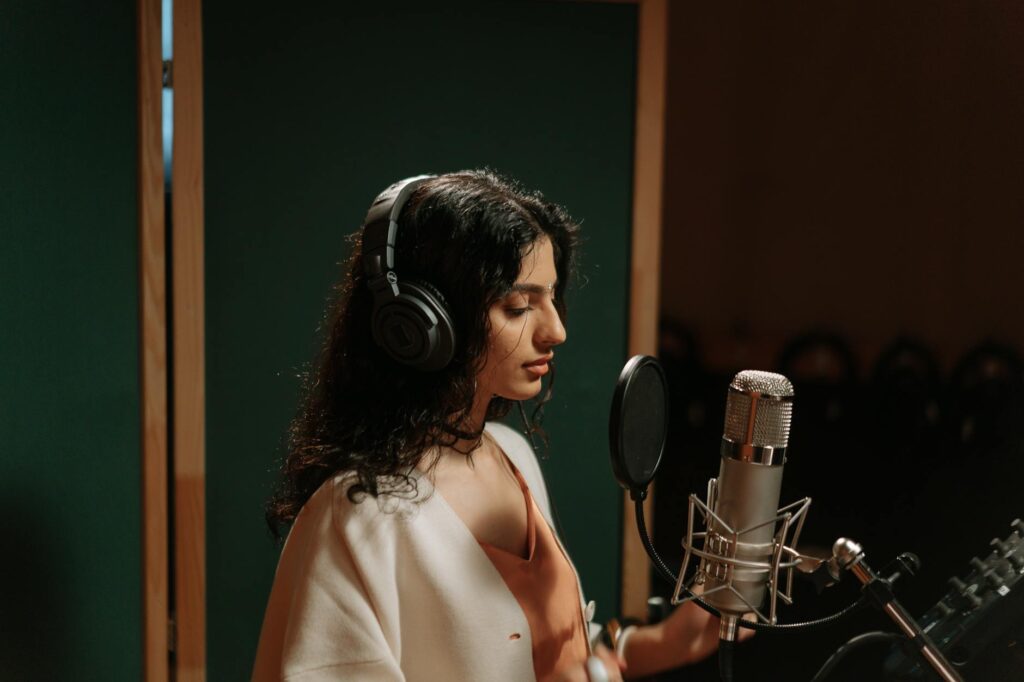
You don’t need to know what a decibel is, understand audio compression, or have ever touched a mixing board to create professional-quality audio with AI. The tools available right now are so accessible that someone who’s never recorded a single thing in their life can produce voiceovers, podcasts, music beds, and sound effects within minutes of signing up.
That’s not hype. That’s the reality of where AI audio has landed. The barrier to entry has collapsed, and the people benefiting most aren’t audio engineers, they’re content creators, small business owners, teachers, YouTubers, and entrepreneurs who simply needed a voice or a sound and found a way to get it without hiring anyone or spending weeks learning software.
This guide walks you through exactly how to start using AI audio tools, even if your technical knowledge is effectively zero.
Why AI Audio Is Finally Accessible to Everyone
For most of audio history, quality production required three things: expensive equipment, dedicated software with a steep learning curve, and either significant training or the budget to outsource. Programs like Pro Tools and Adobe Audition are powerful, but they’re built for professionals who spend years mastering them.
AI changed the equation by hiding all that complexity behind simple interfaces. The model does the hard work. You provide the input, whether that’s text, a rough recording, or a description, and the tool handles everything from noise removal to voice synthesis to audio formatting. Easy AI audio tools are essentially professional-grade engines wrapped in consumer-grade interfaces.
The best part is that most of these platforms are browser-based. There’s nothing to install, no hardware requirements, and no configuration process. You log in, you create, you download. That’s genuinely the whole workflow for most beginner AI audio tools on the market today.
The Three Main Things People Use AI Audio For
Before picking a tool, it helps to know what you’re actually trying to accomplish. Most use cases fall into one of three categories.
Text-to-Speech and AI Voiceovers
This is the most popular entry point for anyone exploring AI audio with no skills. You type a script, choose a voice from a library, and the AI generates a natural-sounding spoken version of your text. Platforms like ElevenLabs, Murf, and Play.ht have made this shockingly realistic. You can adjust speaking pace, tone, emphasis, and even emotion without touching a single technical setting beyond a basic slider.
These tools are widely used for explainer videos, e-learning courses, YouTube narration, podcast intros, and product demos. A small business owner who can’t afford a professional voice actor can get broadcast-quality audio for a few dollars a month.
Audio Enhancement and Cleanup
If you’ve already recorded something but it sounds rough, there are AI tools that fix that automatically. Adobe Podcast’s “Enhance Speech” feature, for example, takes a noisy recording made on a laptop microphone and strips out background hum, echo, and inconsistency in seconds. You upload the file, click a button, and download something that sounds like it was recorded in a proper studio.
Krisp and NVIDIA RTX Voice work in real-time, removing background noise during live calls or recordings as they happen. No settings to dial in. No audio knowledge required. It’s genuinely plug-and-play for anyone who’s intimidated by technical audio work.
AI Music and Background Audio
Tools like Suno, Udio, and Soundraw let you generate royalty-free background music by typing a mood, genre, or description. Type “upbeat corporate background music, no lyrics, 90 seconds” and you’ll get exactly that. These are perfect for video creators who need a soundtrack without paying licensing fees or spending hours searching stock music libraries.
Choosing the Right Tool for Your Skill Level
The beginner AI audio tools that work best share a few characteristics: minimal setup, clear prompts or inputs, and instant output with no rendering wait. Here’s a practical breakdown by use case.
- For voiceovers and narration: Start with ElevenLabs or Murf. Both have generous free tiers and interfaces that look more like word processors than audio software.
- For cleaning up recordings: Adobe Podcast Enhance is free, requires no account setup, and produces results in under 30 seconds.
- For background music: Suno lets you generate full tracks from text prompts with no music theory required. Soundraw gives you slightly more control over structure if you want to get into it, but you absolutely don’t have to.
- For voice cloning: If you want to create a consistent AI version of your own voice, ElevenLabs and Resemble AI are the most accessible options. You record a few minutes of sample audio, the platform analyzes it, and then you can generate new speech in your voice from text alone.
The key advice here is to pick one tool, spend 20 minutes with it, and create something. The learning curve on these platforms is measured in minutes, not hours. Analysis paralysis is a bigger obstacle than the tools themselves.
A Simple Step-by-Step Workflow for First-Timers
If you want a concrete no tech AI voice creation process from start to finish, here it is. This uses ElevenLabs as the example, but the logic applies to most similar tools.
Step 1: Create a free account. Go to elevenlabs.io and sign up. The free tier gives you roughly 10,000 characters of generated speech per month, which is plenty to test the tool and complete small projects.
Step 2: Navigate to the Text to Speech tool. It’s in the left sidebar. You’ll see a large text box and a voice selection panel. That’s essentially the entire interface.
Step 3: Paste or type your script. Keep it under 2,500 characters to start. Write naturally, the same way you’d speak.
Step 4: Choose a voice. Browse the voice library. You can filter by gender, accent, age, and style. Click any voice to preview it with your text before committing.
Step 5: Adjust stability and clarity. These two sliders are the only “technical” settings you’ll encounter. Stability controls how consistent the voice sounds across the clip. Clarity affects how sharp the pronunciation is. Default settings work fine for most projects. You might nudge the stability slider slightly left if you want a more expressive, variable delivery.
Step 6: Generate and download. Click the generate button. In 5 to 15 seconds, you’ll have an MP3 file ready to use. Download it, drop it into your video editor or podcast platform, and you’re done.
That’s the full process for a beginner AI audio project. Six steps, no prior knowledge, and a professional result at the end.
Common Mistakes That Slow Beginners Down
Knowing what to avoid saves you a lot of wasted time, especially when you’re new to AI audio no skills territory.
Overthinking the Voice Selection
There are hundreds of voices available on most platforms. Spending 45 minutes auditioning every option is the fastest way to never finish a project. Pick a voice that sounds close to what you need, use it, and iterate if necessary. Done beats perfect here.
Ignoring Script Quality
The AI reads exactly what you give it. If your script is awkward, rambling, or full of run-on sentences, the generated audio will reflect that. Spend more time on the script than on any tool setting. Read it aloud yourself first. If it sounds unnatural coming from you, it’ll sound unnatural coming from the AI.
Skipping the Enhancement Step
If you’re recording your own voice for any part of a project, even just a brief intro, run it through Adobe Podcast Enhance or a similar tool before using it. The difference is significant and the process takes less than a minute. There’s no reason to publish raw audio when cleanup is this easy.
Not Testing Output Before Full Production
Generate a 30-second test clip before committing to a full 10-minute narration. Verify the voice works for your content, the tone fits, and the file format is compatible with whatever you’re building. Catching a mismatch early saves you from regenerating everything.
Free vs. Paid: What You Actually Need to Start
An honest AI audio simple guide has to address cost, because it’s one of the first questions beginners ask. The good news is that starting for free is entirely viable.
ElevenLabs, Murf, Adobe Podcast Enhance, and Suno all have free tiers with meaningful limits. For someone creating occasional content, the free tier on two or three of these tools covers most needs. Paid plans typically range from $5 to $30 per month and unlock higher usage limits, more voices, commercial licensing rights, and sometimes higher audio quality.
Roughly 70% of casual content creators can accomplish everything they need on free tiers. The upgrade case is strongest for commercial use, where you need the licensing rights that free accounts often don’t include, and for high-volume production, where monthly character or generation limits become a genuine constraint.
Start free. Upgrade only when a specific limitation actually blocks something you need to do. That’s the practical approach.
The Fastest Way to Build Confidence With AI Audio
Create something small and real within the next 24 hours. Not a practice file, not an experiment, something you’ll actually publish or use. That constraint forces you to make decisions, finish the project, and see what the output looks like in context. Most people who “try” AI audio tools spend an hour exploring and then close the tab. The ones who actually integrate them into their workflow create something real on day one.
Pick one tool from this guide that matches your immediate need. Set a 30-minute timer. Produce something. The technical intimidation evaporates the moment you hear your first generated clip and realize it actually sounds good. That’s when it clicks, and after that, you won’t think of these tools as technical at all.