Why ElevenLabs Has Become the Go-To Voice AI for Video Creators
If you’ve ever sat through a video with a robotic, lifeless AI narration, you already understand the problem that ElevenLabs set out to solve. The platform produces synthetic voices that are so natural, so emotionally varied, and so convincingly human that most viewers genuinely can’t tell the difference.
For video creators, that’s a game-changer. Whether you’re producing YouTube explainers, online courses, marketing content, or social media clips, adding a professional voiceover used to mean hiring a voice actor or recording your own audio. ElevenLabs collapses that entire process into a few clicks. This elevenlabs tutorial video guide will walk you through the full workflow, from account setup to syncing audio with your footage, so you can start producing polished content immediately.
Setting Up Your ElevenLabs Account Before You Touch Any Video
Getting started is straightforward. Head to elevenlabs.io and create a free account. The free tier gives you 10,000 characters per month, which translates to roughly 7 to 10 minutes of generated audio depending on speaking pace. That’s enough to test the platform thoroughly and produce shorter videos without spending anything.
Once you’re logged in, spend five minutes exploring the voice library before you do anything else. ElevenLabs offers hundreds of pre-built voices sorted by accent, gender, age, and use case. You’ll find deep authoritative voices suited for documentary-style content, conversational voices that work well for social media, and everything in between. If none of the default options feel right, the platform’s voice cloning feature lets you upload a sample of any voice (including your own) and replicate it with remarkable accuracy. Voice cloning is available on paid plans starting at the Starter tier, which runs around $5 per month.
Before generating anything, adjust your settings in the Speech Synthesis panel. The two most important controls are Stability and Similarity Enhancement. Stability affects how consistent the voice sounds across the generated clip. Set it too high and the delivery becomes flat and monotone. Set it too low and you get unpredictable variations between sentences. For most video voiceover work, a stability setting between 50 and 70 hits the sweet spot. Similarity Enhancement controls how closely the output matches the original voice sample. Keep this between 70 and 85 for natural results without overcooking the effect.
Writing a Script That Voice AI Actually Delivers Well
The quality of your elevenlabs video voiceover output depends heavily on how well your script is written for synthetic speech. This isn’t the same as writing for a human narrator, and it’s worth understanding the differences before you generate a single word.
Short, declarative sentences perform better than long, winding ones. When a sentence runs past 30 words or contains multiple clauses, ElevenLabs sometimes struggles with pacing and emphasis. Break complex ideas into two or three shorter sentences instead.
Punctuation does real work here. Commas create natural micro-pauses. Periods give the voice a moment to breathe. If you want a longer pause between sections, type three periods or add a line break in your text. Some creators insert intentional filler characters like a hyphen followed by a space to trigger specific timing effects, though results vary. Experiment on a short passage first.
Avoid unusual abbreviations and acronyms without context. If your script includes “API,” “HTML,” or industry-specific shorthand, spell it out phonetically or write the full phrase. ElevenLabs reads “API” as three separate letters correctly most of the time, but niche technical terms can trip up the synthesis engine. Reading your script aloud yourself before generating is the fastest way to catch these problems. If it sounds awkward when you say it, it’ll sound awkward in the generated audio too.
Generating and Downloading Your Voiceover Audio
With your script ready and your voice selected, paste your text into the text box on the Speech Synthesis page. Keep individual generations under 2,500 characters for best results. Longer blocks can occasionally introduce timing inconsistencies between paragraphs. For longer videos, break your script into logical sections and generate each one separately. You’ll get cleaner, more consistent audio that way.
Hit Generate, and ElevenLabs typically processes standard-length scripts in under 10 seconds. Play it back immediately using the built-in audio player. Listen carefully for any words that sound clipped, mispronounced, or oddly emphasized. If something’s off, you have a few options before downloading.
First, try regenerating. Because there’s a small degree of variation built into each generation, you’ll sometimes get a noticeably better read on the second or third attempt. Second, if a specific word keeps getting mangled, you can use phonetic spelling as a workaround. Write “fie-NAL-ee” instead of “finally” if the voice keeps stumbling on it. Third, the SSML (Speech Synthesis Markup Language) feature on higher-tier plans gives you fine-grained control over prosody, pauses, and emphasis using XML-style tags.
When you’re happy with the output, click the download button to save the file as an MP3. ElevenLabs doesn’t currently offer WAV export on most plans, but MP3 at the platform’s default bitrate is more than adequate for video production. Download each section of your script separately, labeled clearly so you don’t lose track during editing.
Syncing Your AI Voiceover Audio to Video in an Editor
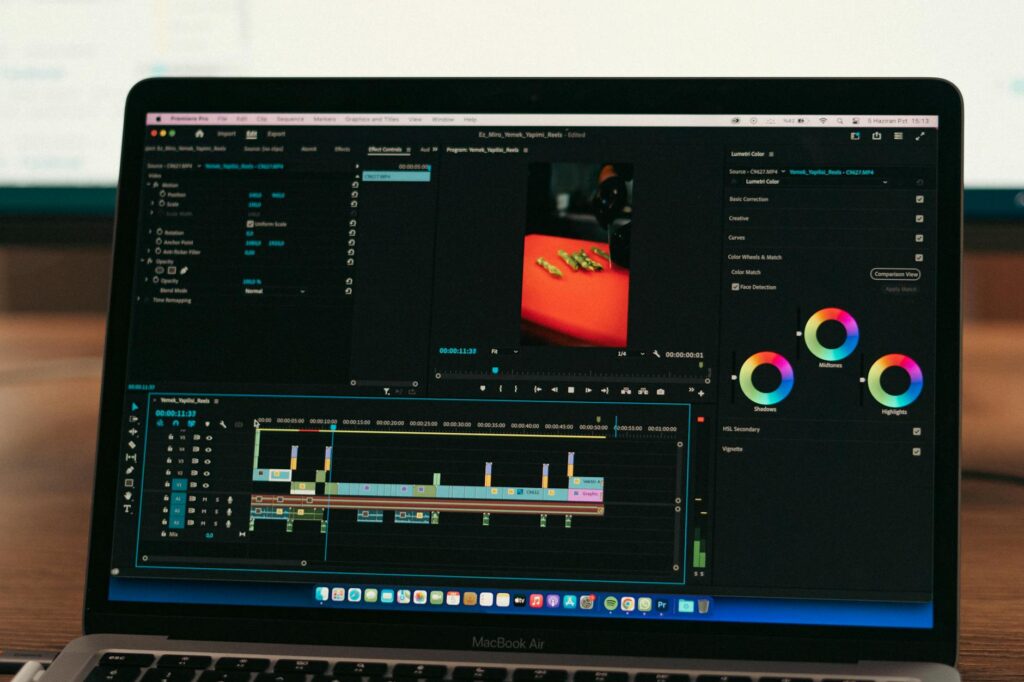
This is where the elevenlabs tutorial video workflow moves into your editing software of choice. The most popular options among creators using voice ai video pipelines are Adobe Premiere Pro, DaVinci Resolve (which is free and excellent), CapCut for quick social media content, and Final Cut Pro for Mac users. The process is essentially the same across all of them.
Import your video footage and your ElevenLabs MP3 files into the project. Create a dedicated audio track for your voiceover, separate from any music or sound effects tracks. Drag your first voiceover clip onto the timeline and line it up with the visual it corresponds to. Play it back and adjust as needed.
Here’s where most beginners run into friction: the generated audio rarely syncs perfectly with pre-existing footage on the first attempt. If your video was shot assuming a certain pace and your ElevenLabs output runs faster or slower, you have two practical solutions. The first is trimming or extending the video clips to match the audio. The second is using your editor’s time-stretching feature to slightly speed up or slow down the audio without changing its pitch. Most professional editors handle time-stretching transparently up to about 10 to 15 percent without audible artifacts.
If you’re building the video around the voiceover rather than syncing audio to existing footage, let the ElevenLabs audio drive the edit. Place the voiceover on the timeline first, then cut your B-roll and visuals to match the narration’s rhythm. This approach generally produces tighter, more professional results because every visual decision is grounded in the audio’s natural pacing.
Polishing the Audio So It Blends Seamlessly with Your Video
Raw AI-generated audio, even from a platform as capable as ElevenLabs, benefits from a few post-processing steps. Skipping this stage is the most common reason an add voiceover elevenlabs workflow produces results that feel slightly “off” even when the voice itself sounds great.
Start with volume normalization. Your voiceover should sit around -12 to -6 dB in the mix, depending on whether background music is present. Most editors include a built-in audio gain tool. If you have access to a loudness normalization plugin targeting -16 LUFS (the YouTube standard), use it. Consistent loudness across your entire video matters more than most creators realize.
Add a subtle room tone or background ambience layer beneath the voiceover. ElevenLabs generates audio in a perfectly clean, anechoic environment, which sometimes creates an uncanny contrast with video footage shot in real spaces. A very low-level ambient noise track (cafe murmur, office hum, light room tone) bridges that perceptual gap and makes the voiceover feel more integrated with the visual content.
If your voiceover will run alongside background music, apply a gentle sidechain compression or manual volume automation so the music ducks slightly whenever the voice is active. This keeps the narration intelligible without completely muting your audio bed. A 3 to 6 dB reduction in the music during vocal passages is usually enough.
Scaling Your Workflow with ElevenLabs Projects and API Access
Once you’re comfortable with the basic add voiceover elevenlabs process, there’s a significant efficiency jump available through the Projects feature and the ElevenLabs API. The Projects feature lets you manage long-form scripts as structured documents, generate audio chapter by chapter, and maintain consistent voice settings across an entire video series. If you’re producing a course with 20 or 30 video segments, Projects saves a substantial amount of repetitive setup time.
The API is worth exploring if you’re building any kind of automated ai voiceover video pipeline. With a few lines of Python or JavaScript, you can send script text to ElevenLabs programmatically and receive audio files back without touching the web interface at all. This becomes genuinely powerful when combined with tools like Make (formerly Integromat), Zapier, or custom n8n workflows. Some creators have built fully automated systems where a new blog post triggers a voiceover generation, which then feeds directly into a video rendering pipeline.
API access starts on the Creator plan at around $22 per month, which also bumps your character limit to 100,000 per month. For anyone producing video content at scale, the ROI compared to freelance voice actor rates is immediate and obvious.
Start Small, But Think About Scale From Day One
The most effective way to integrate ElevenLabs into your video production process is to start with a single short project, follow the workflow outlined here from script to final export, and get completely comfortable with each step before adding complexity. Pick one voice, produce one complete video, and optimize your audio before moving on.
Once that first video is done, you’ll have a repeatable template: a preferred voice setting, a proven script format, a consistent processing chain, and a clear sync methodology. Every video after that gets faster. Many creators report cutting their production time by 60 to 70 percent compared to traditional voiceover workflows once their ElevenLabs process is dialed in. That’s not just a time saving. It’s the difference between publishing one video a week and publishing four.