Making Kids Content Just Got a Whole Lot Less Exhausting
You don’t need a film crew, a studio, or a closet full of puppets to create engaging educational videos for children anymore. AI tools have genuinely flipped the production process upside down, making it possible for teachers, parents, and content creators to produce polished kids content with a laptop and a decent idea.
The demand is staggering. YouTube reports that kids’ content consistently ranks among the highest-viewed categories on the platform, and educational videos for children pull in billions of views every month. Yet the barrier to creating that content used to be enormous. Writing scripts, recording voiceovers, designing characters, animating scenes, adding sound effects , each piece required either money or serious skill. AI has systematically knocked down each of those barriers, one by one.
This guide walks you through the entire process of using AI to create kids educational videos, from the initial concept to the final upload, with specific tools and real workflow advice along the way.
Planning Your Video Concept Before the AI Does the Heavy Lifting
Here’s something a lot of new creators get wrong: they open an AI tool immediately and start generating without a plan. The result is usually a video that looks polished but says nothing meaningful. Before touching any software, nail down three things.
First, identify your audience’s age range. Content for 3-year-olds needs repetition, simple vocabulary, bright primary colors, and very short segments (think two to three minutes maximum). Content for 8-year-olds can handle narrative structure, mild complexity, and run up to ten minutes without losing them. These are not the same product.
Second, pick a tight educational focus. “Science” is not a topic. “Why do leaves change color in autumn?” is a topic. Specificity makes AI outputs dramatically more useful because you can give the tools precise prompts instead of vague directions.
Third, sketch a rough structure: hook (grab attention in the first 15 seconds), main content (broken into two or three digestible chunks), a recap, and a simple call to action like “ask a grown-up about this tonight.” This skeleton will guide every AI tool you use afterward.
Writing the Script with AI: Fast, but Requires Your Hand
ChatGPT, Claude, and Google Gemini all handle children’s educational script writing surprisingly well, especially when you give them detailed prompts. A weak prompt looks like this: “Write a script about volcanoes for kids.” A strong prompt looks like this: “Write a 3-minute educational video script for children aged 5-7 about how volcanoes erupt. Use simple vocabulary, include two fun facts, add one repeated phrase the audience can say along with the host, and keep the tone playful but not chaotic.”
The difference in output quality is enormous. When creating ai kids videos through language models, specificity in prompting is the single most important skill you can develop. Think of the AI as an extremely fast but somewhat literal assistant , it needs clear instructions to do good work.
Run every script through your own editorial filter before moving forward. Check that facts are accurate (AI does hallucinate occasionally, and kids educational content needs to be airtight), that the reading level matches your audience, and that the pacing feels natural when read aloud. Read it out loud yourself. If you stumble, a child will disengage.
AI Voiceover Tools That Don’t Sound Like a Robot Anymore
Three years ago, text-to-speech for children’s content sounded like a GPS unit reading a bedtime story. The gap has closed dramatically. Tools like ElevenLabs, Murf, and Play.ht now offer voices with genuine warmth, appropriate pacing, and even emotional inflection that works well for children educational video AI production.
ElevenLabs in particular lets you clone a voice or choose from a library of pre-built options. For kids content, look for voices described as “warm,” “friendly,” or “upbeat” rather than “authoritative” or “professional.” The latter two categories tend to produce voices that feel like a corporate training video, which is exactly what you don’t want for a 6-year-old learning about dinosaurs.
Murf offers a solid free tier and has several child-appropriate voice options. When using any AI voiceover tool, adjust the speaking rate slightly lower than the default, around 85-90% of standard speed, because younger children need more processing time between phrases. Add deliberate pauses after key facts. These small tweaks significantly improve comprehension and retention for your youngest viewers.
Generating Visuals: Characters, Backgrounds, and Animation Without a Design Team
This is where ai educational video children production has made the most dramatic leaps. You now have several distinct routes depending on your budget and technical comfort level.
Static Image Generation with AI
Tools like Midjourney, Adobe Firefly, and DALL-E 3 (built into ChatGPT Plus) generate illustrated characters and backgrounds from text descriptions. For kids content, prompts that specify “flat vector illustration style,” “bright saturated colors,” “friendly cartoon characters,” and “white background” tend to produce images that look like they belong in a published children’s book. Generate character variations showing different emotions so you can cut between expressions as the script calls for it.
AI Video Generation Tools
Platforms like Synthesia, Pictory, and Steve.AI take your script and voiceover and assemble them into a video with animated elements, stock footage, or AI-generated avatars presenting the content. Synthesia in particular is popular for kids youtube ai projects because it allows you to use AI presenters that look friendly and approachable without requiring any real actors.
Canva’s AI video features deserve a mention here too. Canva has evolved from a simple design tool into a surprisingly capable video production platform. Their “Magic Studio” features let you drop in a script, choose a visual style, and generate slide-by-slide animated content that works well for older kids in the 7-12 age range who respond to more structured, lesson-style presentation formats.
Full Animation with Vyond and Similar Tools
Vyond is not purely an AI tool, but it integrates AI features and has an enormous library of child-friendly animated characters and backgrounds. If you want your kids content ai production to look like a proper animated series rather than a slideshow, Vyond gives you that at a fraction of the cost of hiring an animation studio. Expect to spend two to four hours learning the interface before your first project flows smoothly.
Putting It Together: Editing and Adding the Final Touches
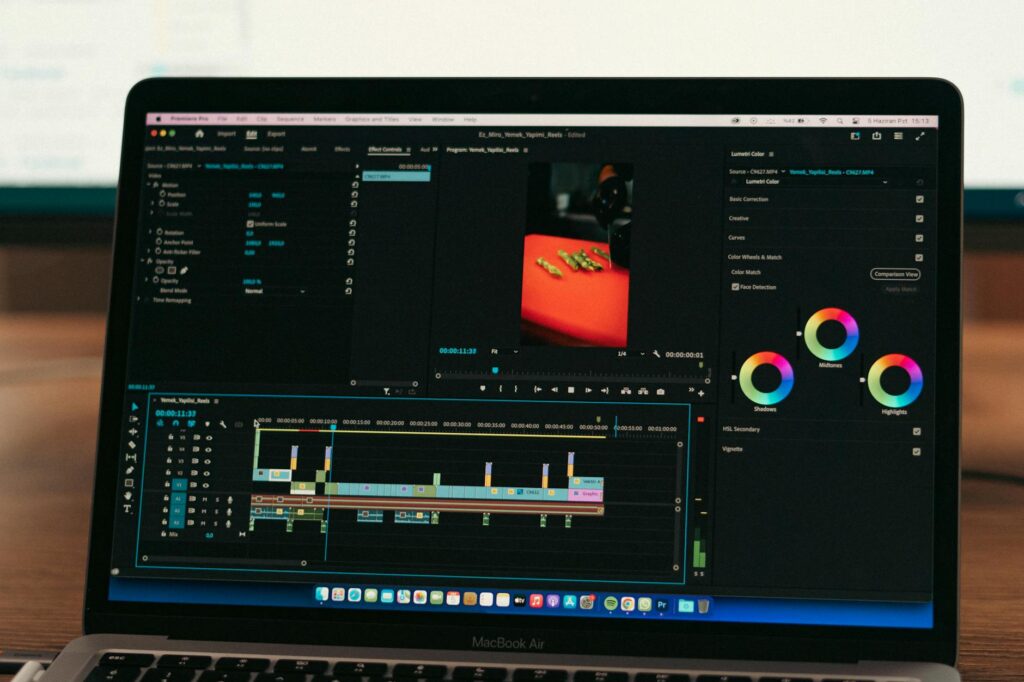
Once you have your voiceover file, your visuals or generated video, and your script as a reference, the assembly phase begins. CapCut (free and remarkably powerful) and DaVinci Resolve both handle the editing side well. CapCut is particularly worth highlighting for creators new to video editing because its AI-powered auto-caption feature generates accurate subtitles in seconds, and subtitles matter enormously for kids content since many children watch videos on tablets with the sound lower than intended.
A few production details that separate good children’s educational videos from great ones:
- Add a short musical intro of five to eight seconds. Consistency across episodes builds recognition and signals to kids that learning time is starting.
- Use royalty-free music under the voiceover at around 20-25% volume. Uppbeat and Pixabay both offer free tracks designed for educational content.
- Include on-screen text for key vocabulary words. When the script mentions “photosynthesis,” show the word on screen for three to four seconds.
- Cut to a new visual every four to six seconds. Children’s attention follows visual change, and long static shots lose them fast.
- End with a simple review question on screen: “Can you remember the three things that plants need?” This transforms passive watching into active recall.
Safety, Accuracy, and Platform Compliance for Kids Content
This section is not optional reading. YouTube has strict COPPA compliance requirements for content directed at children. If you’re uploading kids educational videos to YouTube, you must mark them as “made for kids,” which disables comments, personalized ads, and certain interactive features. Failing to do this correctly can result in significant fines, so read YouTube’s current guidelines before publishing.
On the content side, run every AI-generated fact through a reliable secondary source. A useful rule of thumb: if a fact about history, science, or geography is going into a video that 50,000 children might watch, verify it in two places before it goes in. AI language models are confident even when they’re wrong, and kids repeat what they learn in videos. Getting it right matters.
Avoid any imagery generated by AI that could be considered stereotyping or culturally insensitive. AI image generators have well-documented biases, and children’s content has a particular responsibility to represent the world accurately and respectfully. Review every generated image before it goes into your final cut.
What a Realistic Production Timeline Looks Like
New creators often assume AI means “instant.” The reality is more nuanced. A well-produced four-minute educational video for children, built using AI tools throughout, realistically takes three to five hours for someone with basic familiarity with the platforms involved. That breaks down roughly as: 30-45 minutes on script development, 20-30 minutes on voiceover generation and tweaking, one to two hours on visual generation and selection, and one to two hours on editing and final review.
That is still dramatically faster than traditional production, which for the same video might take two to three days of work across multiple specialists. As you build a repeatable workflow and template, those numbers compress significantly. By your fifth or sixth video, three hours is achievable for a polished four-minute result.
Start Small, Publish Consistently, and Iterate
The creators who see real results with kids youtube ai content are not the ones who spend three months perfecting their first video. They’re the ones who publish a simple, well-researched two-minute video, study the audience retention graph in YouTube analytics, and make the next one measurably better. Pick one topic your audience genuinely needs help understanding, use the AI tools outlined here to build it in a weekend, and get it in front of real children. Their engagement (or lack of it) will teach you more than any guide ever could. Start with one video. Make the next one better.