Why Getting the Music Right Changes Everything
Silent videos feel unfinished. Background music is what transforms a decent clip into something people actually want to watch all the way through. The problem used to be that sourcing the right track meant hours of searching royalty-free libraries, paying licensing fees, or hiring a composer. AI has completely changed that game, and if you’re not using it yet, you’re leaving a lot of production value on the table.
Whether you’re making YouTube content, social media reels, corporate explainers, or short films, adding AI background music to your video is now faster and more accessible than ever. We’re talking about tools that can analyze your footage, detect the mood and pace, and generate or suggest music that actually fits. No music theory knowledge required. No subscription to an expensive stock library. Just a prompt, a few clicks, and a finished track.
This guide walks you through exactly how to do it, which tools are worth your time, and how to get results that sound professional rather than generic.
Understanding How AI Music Generation Actually Works
Before jumping into tools and tutorials, it helps to understand what’s happening under the hood. Most AI music generators are trained on massive datasets of existing music, covering thousands of genres, tempos, moods, and instrumentation combinations. When you give the AI a prompt, like “upbeat corporate background track, 90 BPM, no lyrics,” it uses that training to compose something original, not remix or copy an existing song.
Some tools go further. Platforms designed specifically for ai audio video creation can analyze your actual video file, detect scene changes, emotional tone, and pacing, then generate music that syncs to those elements automatically. Think of it like having a film composer on demand, except the turnaround is seconds instead of weeks.
There are two main approaches you’ll encounter:
- Prompt-based generation: You describe the music you want and the AI creates it from scratch.
- Video-analysis generation: You upload your video and the AI analyzes it to create a matching soundtrack.
Both approaches have their place, and the best workflow often combines them.
The Best AI Tools for Adding Music to Videos Right Now
Mubert
Mubert is one of the most popular options for creators who want AI-generated music for videos that feels tailored rather than canned. You can generate tracks by mood, genre, activity, or duration. The free tier gives you a decent number of downloads, and the paid plans unlock higher quality audio files and commercial licensing. It’s a strong pick if you’re creating content at volume, like a social media manager churning out ten videos a week.
Suno
Suno has made serious waves because it doesn’t just generate instrumental tracks. It can create full songs with vocals and lyrics if you want them. For background music purposes, you’d typically request an instrumental, but the quality of its compositions is genuinely impressive. The interface is simple enough that you can go from zero to a finished track in under two minutes. It’s particularly good for creators who want music that sounds like it belongs in a real production rather than a royalty-free library.
ElevenLabs + Music Generation
ElevenLabs, primarily known for voice synthesis, has expanded into sound and music creation. It’s especially useful if you’re doing ai audio video creation that involves both voiceover and background music, since you can handle both in one ecosystem. The integration makes it easy to layer a voice track over generated music without exporting everything to a separate editor.
Beatoven.ai
Beatoven is built specifically for video creators. You paste in your video length, choose a mood and genre, and it generates a track that fits your exact runtime. One of its strongest features is the ability to break your video into sections and assign different emotional tones to each, so the music can shift from tense to hopeful to triumphant across a single video. That kind of dynamic scoring used to require a professional composer. Now it takes about five minutes.
Runway and CapCut (AI-Assisted Music Matching)
If you’re already using Runway for video editing, you’ll find its AI features extend to audio suggestions. CapCut, particularly on mobile, has built-in AI music features that detect the rhythm and content of your video and recommend or auto-sync tracks. These aren’t pure generation tools in the same way as Suno or Mubert, but they’re excellent for creators who want a streamlined workflow without switching between multiple apps.
Step-by-Step: Adding AI Background Music to Your Video
Let’s get practical. Here’s a workflow that works whether you’re a complete beginner or someone who’s done this before but wants to tighten up the process.
Step 1: Define the Emotional Goal of Your Video
Before you open any tool, spend sixty seconds thinking about how you want viewers to feel. Energized? Calm? Inspired? Nostalgic? This isn’t a soft question. AI music generators respond to mood descriptors, so the clearer you are, the better your output. Write down three adjectives that describe the ideal vibe.
Step 2: Choose Your Generation Approach
If your video has a clear, consistent mood throughout, go with a prompt-based tool like Suno or Mubert. Type in something like: “calm, cinematic background music, piano and strings, 2 minutes 30 seconds, no drums, no vocals.” Be specific about duration, instrumentation, and tempo if you have a preference.
If your video has multiple scenes with different emotional beats, use something like Beatoven, which lets you map music to different segments. This is especially valuable for short films, product videos with narrative arcs, or documentary-style content.
Step 3: Generate and Iterate
Generate at least three to five variations. Seriously. The first result is rarely the best one. Most platforms let you regenerate for free or at very low cost, so take advantage of that. Listen to each track with your video playing in a separate window to check how they sync emotionally, not just technically.
Step 4: Download and Import to Your Editor
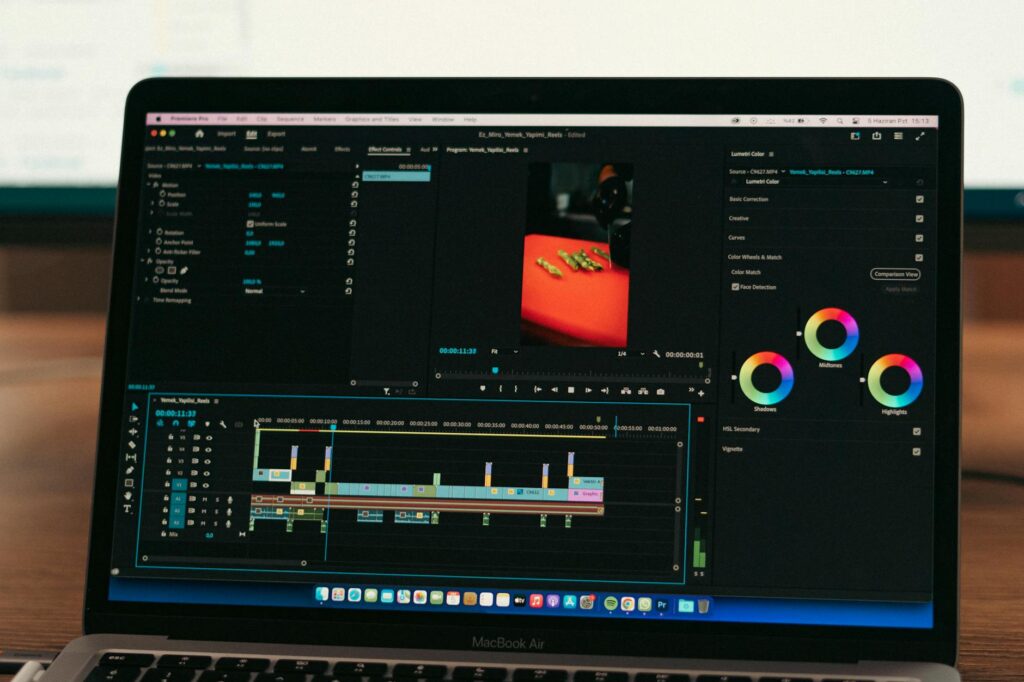
Download your chosen track as an MP3 or WAV (WAV is preferable for editing flexibility) and import it into your video editor. Whether you’re using Premiere Pro, DaVinci Resolve, Final Cut, or even something like iMovie, you’ll drop the audio file onto your timeline and position it under your main footage.
Step 5: Adjust Levels and Fades
This is where a lot of people skip a crucial step. Raw AI-generated tracks often need level adjustment. A good rule of thumb is to keep background music between negative 18 and negative 24 decibels when you have voiceover or dialogue, and closer to negative 12 if the music is the only audio element. Add fade-ins at the beginning (one to two seconds) and fade-outs at the end (two to four seconds) to avoid jarring starts and stops.
Licensing and Copyright: Don’t Skip This Part
Here’s something that catches creators off guard. Not all AI music for videos comes with the same licensing terms. Some platforms grant you full commercial rights with any plan. Others restrict commercial use to paid tiers. A few have murky terms around monetized YouTube videos or brand content.
Before you add music from any AI tool to a video that’ll be monetized or used in advertising, read the licensing page carefully. Most reputable platforms like Mubert, Soundraw, and Beatoven offer clear commercial licenses with paid subscriptions. Suno’s terms have evolved over time, so check their current policy before using it for client work.
The good news is that AI-generated music largely sidesteps the copyright issues that come with traditional stock music. Because these tracks are generated fresh, there’s no original rights holder claiming ownership of the melody. That’s a genuine advantage when you need music for ai videos that you’ll distribute widely.
Getting Better Results: Tips Most Guides Don’t Mention
Most tutorials on ai video music stop at “use this tool and pick a genre.” Here’s what actually separates mediocre results from great ones.
Reference existing tracks in your prompt. Many AI tools accept references like “similar in feel to Hans Zimmer’s Interstellar score” or “lo-fi hip hop like ChilledCow.” This gives the model a much richer target than vague mood descriptors alone.
Match energy to edit pace. If your video cuts every two seconds, slow ambient music will feel disconnected. Fast-paced editing calls for rhythmic music with a strong beat. Slow, contemplative footage needs space and breathing room in the music. The AI won’t always catch this automatically, so guide it with BPM requests.
Layer, don’t just stack. For longer videos, consider generating two or three short tracks at different intensities and using them in different sections rather than looping one track. This keeps the audio feeling dynamic and avoids listener fatigue.
Use AI for the draft, your ears for the final call. AI tools have gotten remarkably good at generating music that works for video content. But they don’t know your specific video, your audience, or your brand. Always make the final call with human judgment. If a track feels wrong, it probably is, regardless of how technically well it was generated.
Where This Technology Is Heading
The tools available for add music ai video workflows right now are already impressive, but they’re still early-stage compared to where things are going. Real-time generation, where music adapts dynamically to video playback without any manual input, is already being tested. Deeper integration between video editing software and AI music engines means that within the next couple of years, your editing timeline might suggest music stems automatically as you arrange clips.
For creators who start building familiarity with these tools now, that future is going to feel like a natural evolution rather than a steep learning curve. The best time to get comfortable with AI background music for video is before it becomes standard practice, not after everyone else already has a workflow locked in.
Start simple: pick one of the tools mentioned above, generate a track for your next video, and notice how much more polished the final product feels. That single experiment usually converts the biggest skeptics. Give it fifteen minutes, and you probably won’t go back to searching royalty-free libraries ever again.