Why Manual Captioning Is a Waste of Your Time
Spending hours transcribing a 10-minute video is one of the fastest ways to kill your creative momentum. AI subtitles for video have reached a point where they’re not just good enough, they’re genuinely impressive, and if you’re still doing it by hand, you’re working harder than you need to.
The shift toward captioned content isn’t optional anymore. Roughly 85% of Facebook videos are watched without sound, and that number isn’t some quirk of the platform. It reflects how people actually consume content, on public transit, in waiting rooms, at their desks while pretending to pay attention in meetings. If your video doesn’t have captions, a significant chunk of your audience is clicking away. The good news is that AI caption generator tools for video have made adding subtitles something you can accomplish in minutes, not hours.
This article will walk you through exactly how to use AI to caption your videos, which tools are worth your time, and how to squeeze the best results out of automated transcription without embarrassing errors slipping through.
How AI Captioning Actually Works Under the Hood
Before diving into the tools, it helps to understand what’s happening when you upload a video and get captions back. AI captioning relies on automatic speech recognition (ASR), the same underlying technology that powers Siri, Google Assistant, and transcription software. The model listens to audio, breaks it into small segments, identifies phonemes and words, and maps them to timestamps.
Modern ASR models, particularly those built on transformer architectures like OpenAI’s Whisper, have dramatically improved accuracy over older systems. Whisper, for instance, was trained on 680,000 hours of multilingual audio. That scale means it handles accents, fast speech, and background noise far better than tools from even three years ago.
When you use a video captions AI tool, it’s typically running one of these powerful models (sometimes a proprietary version, sometimes an open-source one) and wrapping it in a user-friendly interface. The output is usually an SRT or VTT file, which you can either burn directly into the video or upload as a subtitle track to platforms like YouTube or Vimeo.
Accuracy varies depending on audio quality, speaker clarity, and how technical your vocabulary is. A clean studio recording of standard English will get you close to 99% accuracy. A noisy interview with heavy regional accents and industry jargon might come back at 85-90%, which means you’ll need to review and correct. Still, 85% accuracy out of the box beats 0% from a blank document you haven’t started.
The Best AI Tools for Adding Subtitles to Video
Not every tool is built the same, and the right choice depends on your workflow, budget, and how much control you want over the final result.
Descript
Descript is one of the most complete video editing platforms that leans heavily on AI. When you upload a video, it transcribes the entire thing automatically and syncs the transcript to the timeline. Editing the transcript edits the video, which sounds like a gimmick until you actually use it. You can add subtitles directly from the transcript, style them to match your brand, and export a captioned video in a few clicks. It’s particularly strong for creators who want an all-in-one editing and captioning environment rather than a dedicated subtitle tool.
Kapwing
Kapwing is a browser-based video editor that includes an auto captions AI feature that works fast and produces clean results. Upload your video, hit the auto-subtitle button, and within a couple of minutes you’ve got timed captions you can edit inline. The styling options let you change fonts, colors, positions, and sizes. It’s a solid pick for social media creators who need to move quickly and don’t want to install software. The free tier is functional, though the paid plan removes watermarks and unlocks longer video support.
Adobe Premiere Pro (with Sensei AI)
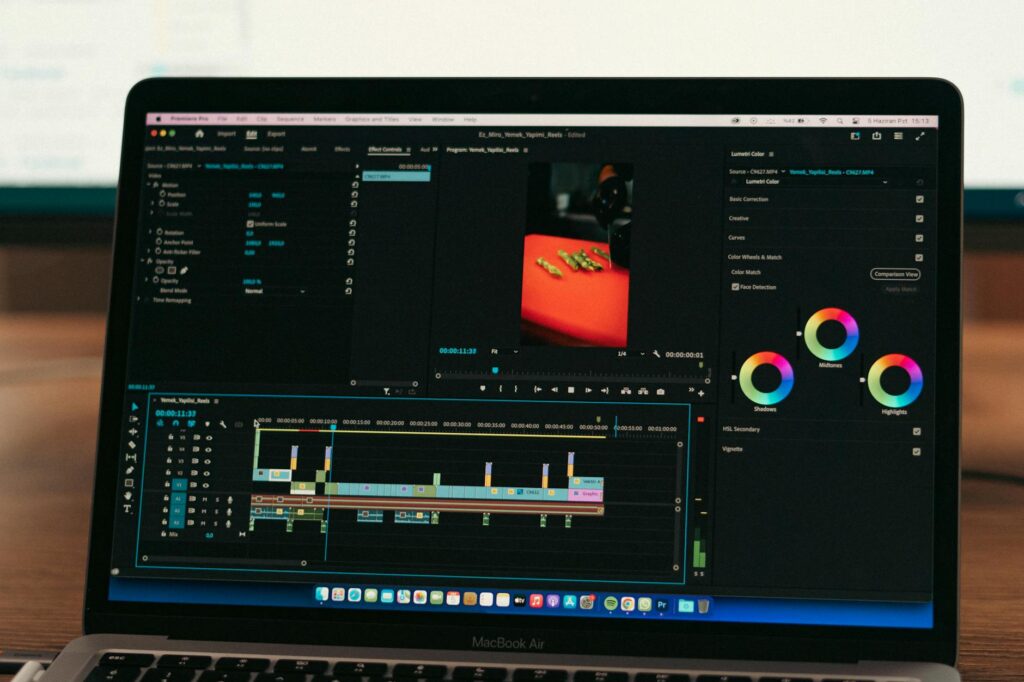
If you’re already working in Premiere Pro, you don’t need a third-party tool. Adobe’s Sensei AI powers a built-in transcription and captioning feature that integrates directly with the timeline. Go to Text, select Transcribe Sequence, and let it run. The output appears in the Captions panel where you can edit timing, text, and style before burning them in or exporting a sidecar file. For professional editors who live in Premiere, this is the most streamlined path to adding subtitles with AI without leaving the application you’re already in.
Captions.ai
Captions.ai is a mobile-first tool built specifically for creators making short-form content. The app is remarkably polished for something you run on your phone. Record directly in the app or import existing footage, and the AI handles transcription and caption placement automatically. It’s one of the better options for TikTok, Instagram Reels, and YouTube Shorts creators who shoot and edit on mobile. The animated caption styles are genuinely eye-catching, which matters when you’re competing for attention in a crowded feed.
Submagic
Submagic has positioned itself as the go-to add subtitles AI tool specifically for short-form video content. It’s aggressively optimized for the kind of punchy, word-by-word caption animation style that dominates short-form platforms right now. Upload your video, and it generates styled, animated captions with highlighted keywords automatically. The visual output looks professional without requiring any design skill. If your entire workflow revolves around YouTube Shorts or Reels, it’s worth testing.
Zubtitle and VEED.io
Both of these tools occupy a similar space: clean, web-based interfaces with solid AI caption generator video features aimed at content creators and marketers. VEED.io is particularly versatile, handling everything from basic subtitle generation to translation into other languages. Zubtitle is simpler and a bit more focused, which makes it faster to use if you just need to get captions on a video and get out. Either one works well for teams that want a shareable, browser-based tool without individual software licenses.
Step-by-Step: Adding AI Captions to a Video Without the Headaches
The process is roughly the same across most tools, with minor interface differences. Here’s how to approach it properly so you’re not correcting a mess afterward.
- Start with the best possible audio. AI accuracy lives and dies by audio quality. If you’re recording voiceover, use a decent microphone in a quiet room. If you’re working with existing footage that has background noise, run it through a tool like Adobe Podcast’s audio enhancer or Krisp before uploading for transcription.
- Upload to your chosen AI tool and let it run. Don’t interrupt the process. Depending on file size and server load, transcription typically takes between 30 seconds and a few minutes for a 10-minute video.
- Review the transcript before styling anything. Read through the captions against the video. Fix proper nouns, technical terms, and anything that sounds phonetically similar to the right word but isn’t. “Their” versus “there” errors are common, as are mistranscribed names.
- Check timing and line breaks. AI tools occasionally create awkward line breaks mid-phrase. A caption that reads “I really think you should” on one line and “consider this” on the next is jarring. Adjust breaks so they fall at natural pauses.
- Apply consistent styling. Choose a font, size, and color that’s readable against your video background. White text with a dark outline or shadow is the most reliable choice. Avoid thin fonts or colors that blend into common backgrounds.
- Export in the right format. If you’re uploading to YouTube, export an SRT file and upload it separately so viewers can toggle captions on or off. If you’re posting to Instagram or TikTok, burn the captions into the video (open captions) since those platforms’ auto-caption features aren’t reliable enough to trust.
Getting Accurate Results When Your Content Is Technical or Multilingual
AI captioning tools handle standard spoken English well. They struggle when you’re deep in technical jargon, acronyms, or switching between languages. A video about cardiothoracic surgery, quantum computing, or niche legal terminology is going to require more manual editing than a lifestyle vlog.
A few practical strategies help here. First, many tools let you upload a custom vocabulary or glossary. If your tool supports this, add your technical terms before transcription runs. Second, read the transcript out loud against the video rather than just reading it silently. Your brain autocorrects errors when reading; your ears catch them when listening. Third, for multilingual content, use a tool specifically built for translation captioning. VEED.io and Kapwing both handle multi-language subtitle generation reasonably well, and dedicated tools like Maestra or Sonix offer stronger translation quality for professional use.
One thing people often overlook: speaker identification. If your video features multiple people, some AI tools can distinguish between speakers and label them in the transcript. This is especially useful for interview content or panel discussions. Descript and Otter.ai handle this particularly well.
Don’t Skip the Review Step Just Because It’s Fast
The promise of AI video captions is speed, and the tools absolutely deliver on that. But “fast” shouldn’t mean “unreviewed.” A caption that says “pubic relations” instead of “public relations” isn’t just embarrassing, it’s the kind of thing that gets screenshotted and shared. The auto captions AI generates are a first draft, not a finished product.
Build a review step into your workflow. For a 10-minute video, budget about 15-20 minutes to read through and correct the AI output. That’s still a fraction of what full manual transcription would take, and it’s the difference between captions that add professionalism and captions that undermine it.
If you’re serious about video content, choose one AI caption generator tool, learn it properly, and make captioning a non-negotiable part of your publishing checklist. The accessibility argument alone is enough to justify it. The SEO benefits (YouTube indexes caption text), the engagement lift, and the reach into silent-scroll audiences make it one of the highest-ROI habits a video creator can build. Pick a tool from the list above, caption your next video today, and see how much smoother the process is than you expected.