The Green Screen Is Dead. AI Killed It (In the Best Way)
You don’t need a green screen, a studio, or a professional video editor to get clean background removal anymore. AI has completely changed the game, and if you’re still stretching fabric across your wall or fighting with chroma key settings in Premiere Pro, you’re doing it the hard way.
Background removal used to be one of those tasks that separated hobbyists from professionals. It required either expensive equipment, serious editing skills, or both. Now, a handful of AI-powered tools can analyze your footage frame by frame, isolate your subject with impressive accuracy, and strip the background in minutes. The results aren’t just passable , in many cases, they’re genuinely good. Good enough for YouTube, TikTok, corporate presentations, and even some commercial work.
This guide walks you through exactly how to use AI to remove video backgrounds, which tools are worth your time, what the limitations actually look like, and how to get the cleanest output possible. No hype, no vague advice. Just what actually works.
How AI Background Removal Actually Works
Before diving into the tools, it helps to understand what’s happening under the hood. Traditional chroma key removal works by targeting a specific color (usually bright green or blue) and making every pixel of that color transparent. It’s reliable when you control the environment, but falls apart the moment your lighting shifts or someone wears a green shirt.
AI background removal works differently. These systems use deep learning models trained on millions of images and video frames to understand the semantic difference between a subject and its background. The model isn’t looking for a specific color. It’s recognizing what a person looks like, tracking edges, understanding depth cues, and separating the subject from the environment based on context.
This is why AI remove video background tools can handle complex shots like curly hair, transparent glasses, loose fabric, and even partially transparent objects with far more grace than chroma key ever could. The best models update their predictions on a per-frame basis, using temporal smoothing to prevent the flickering edges that plagued earlier attempts at this technology.
The tradeoff? Processing power and time. AI-based segmentation is computationally expensive, which is why you’ll often need to either upload your footage to a cloud tool or use a machine with a capable GPU. But even that barrier is dropping fast.
The Best AI Background Video Tools Right Now
Not every tool that claims to offer AI background removal delivers the same quality. Here’s an honest breakdown of the options that are genuinely worth using in 2024 and beyond.
Runway ML
Runway is probably the most capable AI background video tool available to creators who aren’t working in a professional VFX pipeline. Its Remove Background feature uses a proprietary model that handles complex edges remarkably well, including hair and semi-transparent materials. You upload your clip, the system processes it, and you download a version with the background replaced by transparency or a solid color.
The free tier is limited in export resolution and total processing minutes. The paid plans start around $15 per month and give you significantly more headroom. For most YouTubers and content creators, the Standard plan is more than enough. Runway’s output quality puts it ahead of most competitors, particularly when dealing with subjects that have complex outlines.
Adobe Express and Premiere Pro
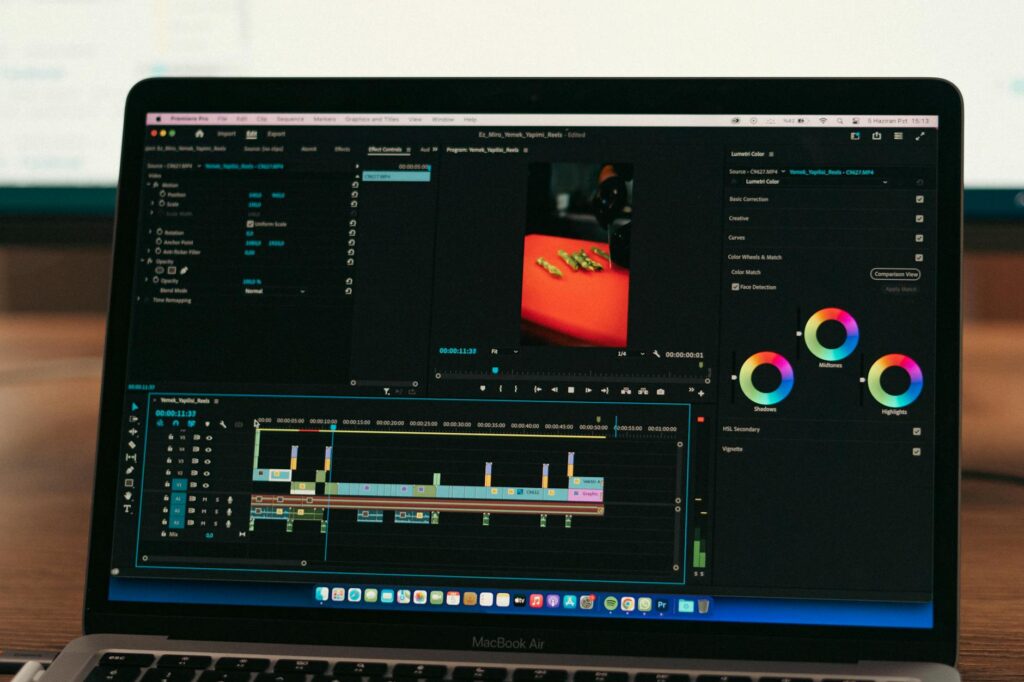
Adobe has been quietly aggressive about integrating remove bg video AI functionality into its existing products. Premiere Pro now includes an AI-powered background removal feature that works directly in the timeline without exporting your footage to a third-party service. For anyone already paying for Creative Cloud, this is the obvious choice.
The quality isn’t quite at Runway’s level for complex edge cases, but it’s more than sufficient for talking-head videos, tutorials, and corporate content. The integration is seamless, and you can apply virtual background AI effects right inside your existing workflow without switching apps.
Unscreen
Unscreen is built specifically for one task: removing video backgrounds. It doesn’t try to be a full editing suite. You upload your clip, it processes it, and you get a clean export. The free version watermarks your output and limits clip length. The paid version removes those restrictions and costs around $5 per clip or via a monthly subscription.
Unscreen works exceptionally well on shorter clips, looping videos, and GIFs. It’s the go-to for social media content creators who need quick turnaround without a steep learning curve. The background removal AI video processing is handled entirely in the cloud, so your hardware specs don’t matter.
Capcut
CapCut has become a serious contender in the creator tool space, and its AI background removal feature is genuinely impressive for a free tool. The desktop version handles background removal better than the mobile app, though both are usable. If you’re editing short-form content for TikTok or Instagram Reels and don’t want to pay for Runway or Adobe, CapCut is the strongest free alternative available right now.
DaVinci Resolve with Magic Mask
DaVinci Resolve’s Magic Mask tool uses AI-powered rotoscoping to track and isolate subjects across frames. It’s not a pure background removal tool in the same sense as Runway or Unscreen, but for anyone who needs frame-accurate control over complex shots, it’s extraordinarily powerful. The free version of Resolve includes Magic Mask, which makes this the best option for professionals who want local processing without a subscription fee.
The learning curve is steeper than the cloud-based tools, but the output ceiling is higher.
Step-by-Step: Removing a Background With Runway ML
Since Runway offers the best balance of quality and accessibility for most users, here’s how to actually use it from start to finish.
Step 1: Create an account. Go to runwayml.com and sign up. The free tier gives you enough credits to test the tool and process a few short clips before committing to a paid plan.
Step 2: Upload your footage. From your Runway workspace, navigate to the “Remove Background” tool. Upload your video file. Runway supports MP4, MOV, and several other common formats. Keep clips under 10 seconds for the fastest processing, especially on the free tier.
Step 3: Process the clip. Hit the process button and let the AI do its work. Depending on clip length and server load, this usually takes anywhere from 30 seconds to a few minutes. You’ll see a progress indicator while the system analyzes each frame.
Step 4: Review the output. Runway shows you a preview with the background removed. Check the edges carefully, especially around hair and clothing. For most clean shots with reasonable lighting, the results will be ready to use immediately.
Step 5: Export and use. Download your processed video as a file with a transparent background (usually a ProRes file or WebM with alpha channel). You can then drop this into any editing software and place whatever background you want behind the subject.
That’s genuinely the whole process. No plugins, no manual masking, no green screen. The virtual background AI does the heavy lifting.
Getting the Best Results: What Most Guides Don’t Tell You
Even the best AI tools have weaknesses, and understanding those weaknesses lets you work around them intelligently.
Lighting Is Still King
AI background removal works best when there’s clear contrast between the subject and the background. That doesn’t mean you need a green screen, but it does mean you should avoid wearing colors that closely match your environment. A person in a beige sweater standing in front of a beige wall is going to give any AI model a hard time, regardless of how sophisticated it is.
Use soft, even lighting on your face and make sure the background is reasonably distinct in tone or color from your clothing. Even this small adjustment can dramatically improve edge detection accuracy.
Movement Matters More Than You’d Think
Slow, deliberate movement gives the AI more time to track your edges accurately between frames. Fast movement creates motion blur, which makes it genuinely harder for the model to determine where you end and the background begins. If you’re shooting a talking-head video, stay relatively still. If you need to gesture, do it at a moderate pace.
Resolution and Frame Rate Affect Quality
Shooting in 1080p at 30fps is the sweet spot for most AI background removal tools. Higher resolutions and frame rates can actually slow processing significantly and sometimes produce inconsistent results depending on the tool you’re using. 4K footage processed through a cloud-based background removal AI video tool will cost more in credits and take longer. Unless your final output requires 4K, there’s no strong reason to process at that resolution just for background removal.
Post-Processing Can Save Imperfect Results
Even when AI doesn’t nail the edge detection perfectly, you can often clean up the result in post. Apply a subtle edge feathering effect or a slight blur to the mask boundary to blend the subject into the new background more naturally. Most editing software has this capability built in. It’s not cheating , it’s just finishing the job properly.
When AI Background Removal Has Real Limits
Being honest about what AI remove video background tools can’t do is important, because expecting too much leads to frustration and wasted time.
Fine, wispy hair is still a challenge. Most tools handle it reasonably well in controlled conditions, but if you have a large afro, flyaway strands, or curly hair with lots of fine detail, you’ll often see artifacts at the edges. Some tools handle this better than others, Runway and DaVinci Resolve tend to perform best here.
Glasses with reflective lenses can confuse AI segmentation models because reflections on the lens visually blend the foreground and background together. Transparent or semi-transparent clothing has similar issues. These aren’t dealbreakers, but they’re worth knowing before you commit to a shoot.
Complex, busy backgrounds are also harder to work with than plain walls. If you’re shooting in front of a bookshelf, a window with outdoor movement, or a cluttered room, the AI has more to interpret and edges tend to be less clean. A plain, relatively uniform background behind you will always give better results than a complex one, even with AI doing the work.
Start Simple, Scale Up as You Learn What Works
If you’re new to background removal AI video tools, don’t start by trying to process your most important footage. Test with a short clip in a controlled environment, compare a couple of tools, and get a feel for what each one handles well. CapCut is a great starting point if cost is a concern. Runway is worth the trial if you need the best possible quality. If you’re in the Adobe ecosystem already, start there before paying for another subscription.
The technology has reached a point where there’s genuinely no excuse not to use it. Clean, professional-looking video without a green screen is well within reach for anyone willing to spend twenty minutes learning the tools. Pick one, run a test clip, and start producing better content today.